
A home security camera helps homeowners monitor selected areas of a property, view live footage, and receive alerts when supported activity is detected. Depending on the model, a camera may offer night vision, motion detection, two-way audio, cloud recording, or integration with a smart home camera system. The right choice depends on where the camera will be installed, how recordings will be stored, which devices will display the footage, and the level of monitoring required.
Some homeowners need a simple indoor camera to check on a room, while others want an outdoor camera, video doorbell, or coordinated security camera system. Apple users may also prefer home security cameras that work with iOS and allow supported video features through the Home app. Understanding these options makes it easier to choose a camera that fits your property, budget, privacy needs, and existing technology.
What Is a Home Security Camera?
A home security camera is a device that captures video of a selected area for monitoring, review, or security-related notifications. Depending on its features, it may record continuously, capture clips when activity is detected, or provide a live stream through a compatible application.
A standalone camera can serve a specific purpose, such as monitoring a front entrance. A connected camera may also work with sensors, alarms, lighting, or other smart home equipment to support a broader security setup.
However, not every camera includes the same capabilities. Some provide live viewing without cloud recording, while others require a subscription or compatible controller for specific functions. A camera that works with a mobile app also may not support every feature available through Apple Home or another smart home platform.
Before purchasing, identify the functions you need rather than assuming that all connected cameras offer the same recording, storage, and automation options.
Types of Home Security Cameras
Home security cameras are available in several configurations, each designed for different locations and monitoring needs.
Indoor Security Cameras
An indoor security camera is designed for use inside a property. Common applications include monitoring an entryway, living area, or another room where the homeowner needs visibility.
Depending on the model, indoor cameras may offer live video, night vision, two-way audio, motion notifications, and selected smart home integrations.
Placement is important. Position the camera to capture the intended area without unnecessarily recording private activities. If the camera includes a microphone, review its audio controls and notification settings before enabling recording.
Outdoor Security Cameras
An outdoor security camera is designed to operate in exterior conditions. Depending on its specifications, it may have weather-resistant construction, night vision, motion detection, and mounting options suited to entrances, driveways, or yards.
Check the product’s weather rating and intended operating conditions before installation. A camera marketed for indoor use should not be installed outdoors unless the manufacturer explicitly supports that use.
Outdoor placement also affects performance. Walls, trees, lighting, viewing angles, and network coverage can influence what the camera captures and how reliably it connects.
Wired and Wireless Security Cameras
A wired security camera may use a physical network connection, dedicated power supply, or both. Some network cameras use Power over Ethernet (PoE), which can carry power and data over a compatible Ethernet cable.
A wireless security camera typically communicates over a supported wireless network or other wireless protocol. It may use a rechargeable battery, replaceable batteries, or a power adapter.
Wireless cameras can be convenient for retrofits, but they still need adequate signal coverage and reliable power. Wired equipment may require more installation work but can be suitable for locations where stable network connectivity is important.
The best option depends on the building, power availability, installation conditions, and maintenance preferences.
Video Doorbells and Multi-Camera Systems
A video doorbell combines entrance monitoring with a doorbell function. Depending on the model, it may provide visitor notifications, live viewing, two-way communication, and supported recording features.
A multi-camera system coordinates two or more cameras through a common recorder, application, or platform. It can provide broader coverage than a single device, but its suitability depends on camera placement, storage capacity, and the features available through the selected system.
Before buying a multi-camera package, confirm how many cameras the controller supports and whether all models can use the recording and notification features you require.

Features to Compare Before Buying
Product specifications can make cameras appear similar even when their practical capabilities differ. Compare the features that affect the intended monitoring task.
| Feature | What It Does | What to Check |
| Video resolution | Determines the detail captured in video | Image clarity at the intended distance |
| Night vision | Supports monitoring in low-light conditions | Night image quality and useful range |
| Camera motion detection | Detects movement and may trigger alerts or recording | Sensitivity and false-alert controls |
| Person detection | Identifies activity classified as a person by supported software | Model support and real-world limitations |
| Two-way audio | Allows supported listening and speaking through the camera | Microphone, speaker, and app support |
| Recording and storage | Saves live or event-based footage | Cloud terms, local storage, retention, and fees |
| Weather resistance | Helps protect suitable outdoor equipment | Manufacturer rating and installation conditions |
| Smart home integration | Connects the camera with a compatible platform | Exact model compatibility and supported functions |
A higher resolution does not automatically make a camera better for every situation. Viewing angle, lighting, camera placement, image processing, and the distance to the subject also affect useful detail.
Similarly, motion detection and person detection are not infallible. Review alerts in the camera’s intended location and adjust the settings to reduce irrelevant notifications.
Home Security Cameras for iPhone and iOS
Home security cameras for iPhone users can work through a manufacturer’s app, a supported smart home platform, or both. Before buying, distinguish between having an iPhone app and having full compatibility with Apple Home.
Home security cameras that work with iOS may provide live viewing, event notifications, recorded clips, and camera settings through a compatible application. The exact features depend on the app, subscription requirements, and camera model.
If you want to control a camera through Apple Home, confirm that the exact model supports the required Apple Home integration. A camera may work with its own app without appearing in the Home app.
For Apple Home-compatible cameras, the Home app can provide camera streams, supported notifications, and access controls. Compatible HomeKit Secure Video cameras can also support encrypted recording to iCloud+ when the required equipment and settings are in place.
When choosing a camera for an iPhone, check:
- Whether the camera’s app supports your iOS version.
- Whether the camera can be added to Apple Home, if that matters to you.
- Whether remote viewing, recorded clips, and notifications require a subscription.
- Whether the system supports the recording and sharing features you intend to use.
These checks help prevent the common mistake of buying a camera based solely on the presence of an iPhone application.
Can a Home Security Camera Save to iCloud?
A home security camera that saves to iCloud needs to support Apple’s HomeKit Secure Video feature. A camera that only offers the manufacturer’s own cloud recording service does not automatically save footage through Apple’s system.
HomeKit Secure Video allows compatible cameras to record supported activity to iCloud+ through Apple’s Home framework. Apple describes the recordings as end-to-end encrypted, and eligible footage can be accessed through the Home app on supported devices.
The setup requires a compatible camera, an eligible iCloud+ plan, and a supported home hub. The available camera count and recording features depend on Apple’s current requirements and the selected plan.
Before purchasing a camera for iCloud recording, verify that the exact model supports HomeKit Secure Video—not merely Apple Home control or a third-party camera app.
Also consider what happens if the internet connection, camera power, or home hub becomes unavailable. The result depends on the camera, network design, and supported recording configuration.
How to View Home Security Cameras on Mac
Home security cameras on Mac can be viewed through compatible desktop applications or Apple’s Home app when the required camera and platform support is available.
For Apple Home users, compatible cameras can appear in the Home app on a supported Mac. HomeKit Secure Video users can also view eligible recorded clips through the Home app when their Apple Account, iCloud settings, and required home hub are configured appropriately.
However, not every camera manufacturer’s iPhone app has a corresponding Mac application. Some applications may be available only for specific Mac models or operating system versions.
Before selecting a camera for Mac use, check whether you can view live streams, review recorded clips, receive notifications, and manage settings using the interface you intend to use.
If you plan to access cameras on both iPhone and Mac, verify cross-device support before buying. This is more reliable than assuming that an app available on one Apple device will offer all the same features on another.
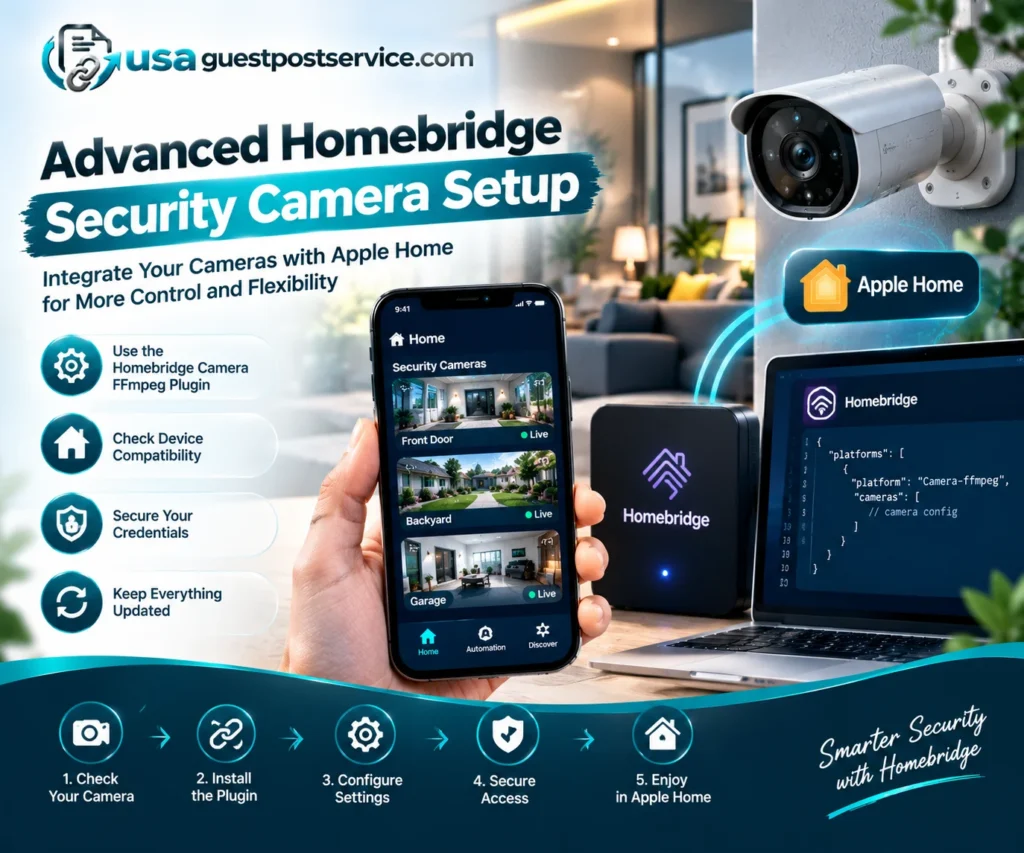
Advanced Homebridge Security Camera Setup
Homebridge can help some users integrate compatible third-party devices with Apple Home. This approach is more technical than choosing a camera with native Apple Home support and may require additional setup, configuration, and ongoing maintenance.
The Homebridge Camera FFmpeg plugin provides a method for exposing compatible network camera streams to HomeKit using FFmpeg. The camera must provide a suitable stream, and the configuration needs to match the device’s supported video and connection requirements.
A Homebridge-compatible camera is not necessarily compatible with every HomeKit feature. Live streaming, motion events, two-way audio, doorbell behavior, and secure recording may require different capabilities or configuration.
What to Check Before Using Homebridge
Start by confirming that your camera exposes a supported video stream and that the current plugin documentation covers a suitable configuration. Community-tested configurations can be helpful, but they should not be treated as a guarantee that another model or firmware version will work.
For Homebridge cameras and doorbell accessories, check each device’s functions individually. A plugin might expose basic video while leaving some manufacturer-app features unavailable.
If you are researching a Homebridge SimpliSafe camera integration, verify the exact SimpliSafe model and the current capabilities of the community plugin involved. Do not assume that a supported alarm system automatically exposes its cameras or doorbells to Apple Home.
Protect Camera Credentials
Advanced camera setup may require stream URLs, usernames, passwords, or other access details. Treat these credentials as sensitive information.
Use unique camera passwords, restrict access to configuration files, and avoid publishing screenshots or configuration examples containing live credentials. If a password has been exposed, change it and review any other accounts that reuse it.
Keep Homebridge, plugins, and camera firmware updated according to their maintainers’ instructions. Community integrations can change over time, so recheck compatibility after major device or software updates.
For broader planning around compatibility, networking, and configuration, see the smart home installation setup guide.
How to Choose the Right Home Security Camera
The right camera depends on the area you want to monitor, how you intend to use the footage, and the other devices in your home.
Begin by identifying the location and purpose. An indoor camera, an outdoor camera, and a video doorbell have different placement and environmental requirements.
Next, decide how you want to view and store the footage. If your household relies on Apple devices, determine whether the manufacturer’s app is sufficient or whether Apple Home and HomeKit Secure Video support are necessary.
Then compare power, connectivity, storage, subscriptions, privacy controls, and ongoing support. For larger installations, consider whether multiple cameras should use a shared recording system and whether professional installation will help with positioning, wiring, or network coverage.
A useful selection process includes four practical checks:
- Confirm that the camera is designed for its intended location and operating conditions.
- Verify compatibility with the app, controller, and Apple devices you want to use.
- Compare the complete cost, including required accessories, storage, and subscriptions.
- Test the expected functions after installation, including live viewing, notifications, and playback.
If the camera is part of a larger connected-home project, the complete smart home setup guide can help with device selection, compatibility, network preparation, and testing.
Home Security Camera Installation and Placement
Camera placement affects both monitoring quality and privacy. Before installation, identify the area to be covered, the available power source, the network connection, and the mounting position.
A front-entry camera may need a different angle and lighting arrangement from a camera monitoring a backyard or an indoor corridor. Avoid placing cameras where glare, obstructions, or poor lighting prevent useful viewing.
For outdoor installations, follow the product’s mounting and weather-resistance instructions. Wired equipment and some mounting locations may require qualified installation work, especially when the project involves fixed electrical wiring or difficult access.
After mounting, test the camera in daylight and at night when relevant. Check the intended viewing area, alerts, live streaming, recording, and playback before relying on the setup.
For more complex projects or multi-device configurations, the smart home installation services guide provides additional guidance on installation scope, integration, and testing.
Camera Privacy, Security, and Maintenance
A connected camera may process video, audio, account information, and details about household activity. Its security depends on the product, configuration, software support, and how access is managed.
Use strong, unique passwords and enable multifactor authentication where available. Keep firmware and camera applications updated, review who can view recordings, and remove access for people who no longer need it.
Check the camera’s privacy settings before enabling audio or recording. Position cameras to focus on the intended area and avoid unnecessary monitoring of private spaces or neighboring property. Recording and audio laws differ by location, so check the requirements that apply to your household.
Maintenance also matters. Periodically confirm that cameras are online, batteries are charged where applicable, lenses are clean, and notifications are reaching the correct account. Review storage capacity and subscription terms so you understand how much footage is retained and when it may be deleted.
A security camera is a monitoring tool, not a guarantee that every event will be detected or prevented. Use it as part of a broader, appropriate approach to home security.
Common Home Security Camera Problems
A camera that stops working may have a power, connectivity, configuration, software, or account-access issue. Begin with simple checks before resetting the entire system.
The Camera Is Offline
Check its power source or battery, then verify network coverage at the installation location. If other devices are also offline, investigate the router or wider network before troubleshooting each camera individually.
Notifications Are Missing or Excessive
Review notification permissions, motion sensitivity, detection zones, and the selected event types. Adjusting the monitored area may reduce alerts caused by irrelevant movement, but test changes to ensure important activity is still detected.
Recordings Are Missing
Confirm that recording is enabled, the correct storage plan or subscription is active if required, and the camera supports the selected recording feature. Check the product’s retention rules and whether the event met the configured recording conditions.
The Camera No Longer Works With Apple Home
Confirm that the camera remains compatible with the current app and software versions and that it has not lost its account link or network connection. For Homebridge setups, review plugin status, stream availability, and recent configuration changes.
Follow the manufacturer’s recovery process before performing a factory reset, since resetting may remove settings and require the device to be configured again.
Frequently Asked Questions About Home Security Cameras
Do All Home Security Cameras Work With iPhone?
No. A camera must support an app or platform compatible with the iPhone’s software. If you want to use Apple Home, check that the exact model supports that integration rather than relying only on the existence of a manufacturer’s app.
Can I View Home Security Cameras on a Mac?
Yes, when the camera supports a suitable Mac application or Apple Home integration. Available functions depend on the device, software version, and recording platform, so confirm live view and playback support before purchasing.
Does Every Apple Home-Compatible Camera Save Recordings to iCloud?
No. Recording through HomeKit Secure Video requires a compatible camera and the required Apple services and home hub. Apple Home compatibility alone does not guarantee support for secure iCloud recording.
Can Homebridge Add Any Camera to Apple Home?
No. Homebridge integrations depend on the device, stream format, plugin capabilities, and configuration. Some cameras may support basic streaming but not advanced recording, audio, motion, or doorbell features.
Should I Choose a Wired or Wireless Home Security Camera?
Choose based on the installation location, power availability, connectivity, and maintenance needs. Wireless models may be easier to retrofit, while wired or PoE cameras can suit installations where a physical network connection is practical.
Choose a Home Security Camera That Meets Your Needs
The best home security camera is one that provides the right coverage, reliable access to footage, appropriate storage, and compatibility with the devices you already use.
Compare camera types, recording options, iPhone and Mac support, network requirements, privacy controls, and total cost before making a decision. If you need Apple Home integration or Homebridge support, verify the exact camera model and supported functions rather than relying on broad compatibility claims.
Plan the installation carefully, protect account credentials, and test the camera after setup. A well-selected and maintained camera can provide useful visibility into your property while fitting naturally into a broader home security system.